Voice communication guide
How to Use Proximity Chat in SAND Raiders of Sophie
Learn the difference between proximity and team voice chat, check the current PC binding, test your microphone before a raid, and communicate without turning every encounter into a loud firefight.
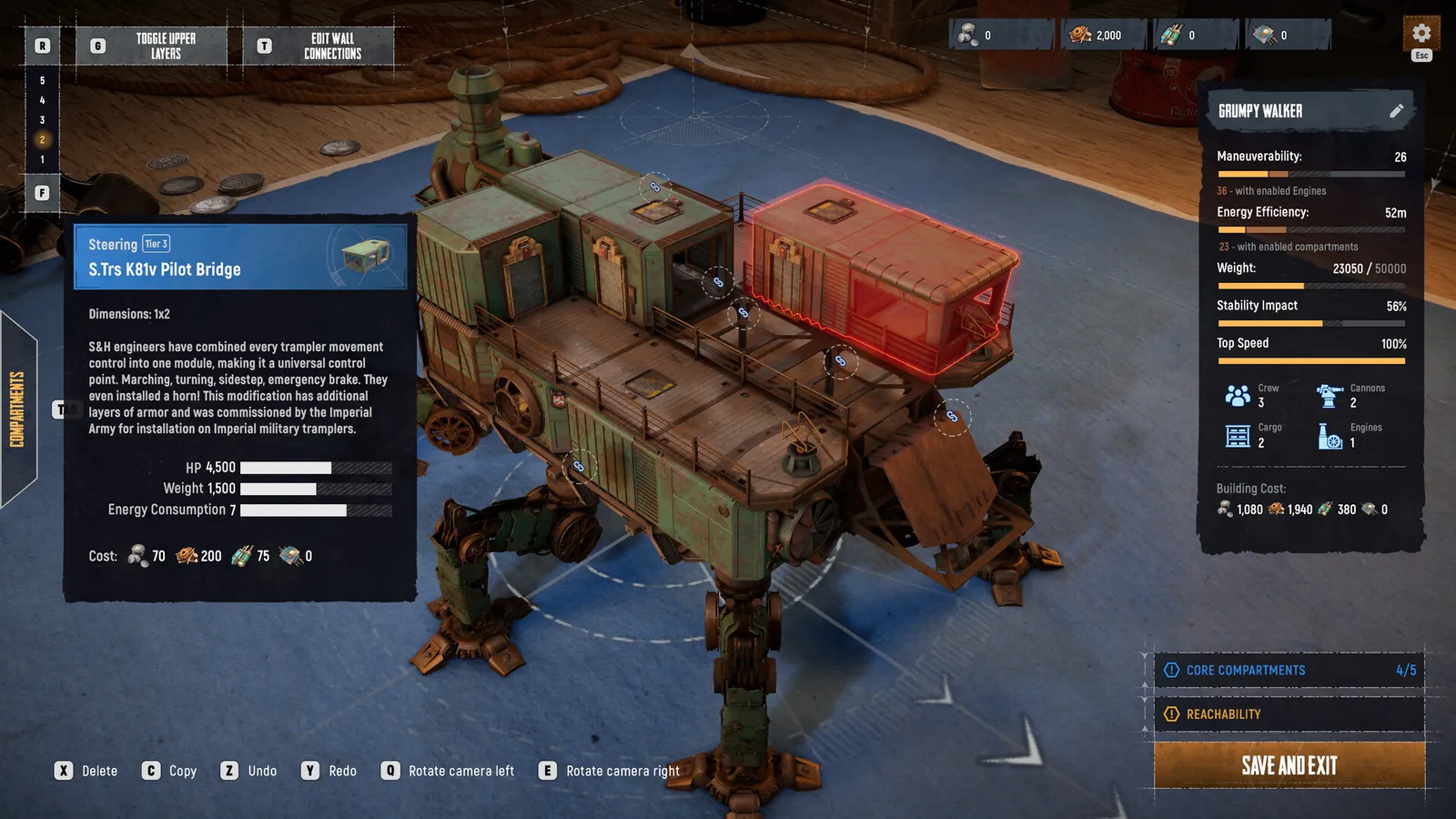
Quick answer: To use proximity chat in SAND Raiders of Sophie, confirm the voice-input binding in Settings, select the correct microphone, then hold the key assigned to proximity voice while speaking near another player. PC keyboard references commonly list C for proximity voice and V for team voice, but bindings can change, so treat those letters as a starting check rather than a permanent rule. Test the input meter and voice volume before leaving the Trampler.
Proximity chat vs team voice chat in SAND
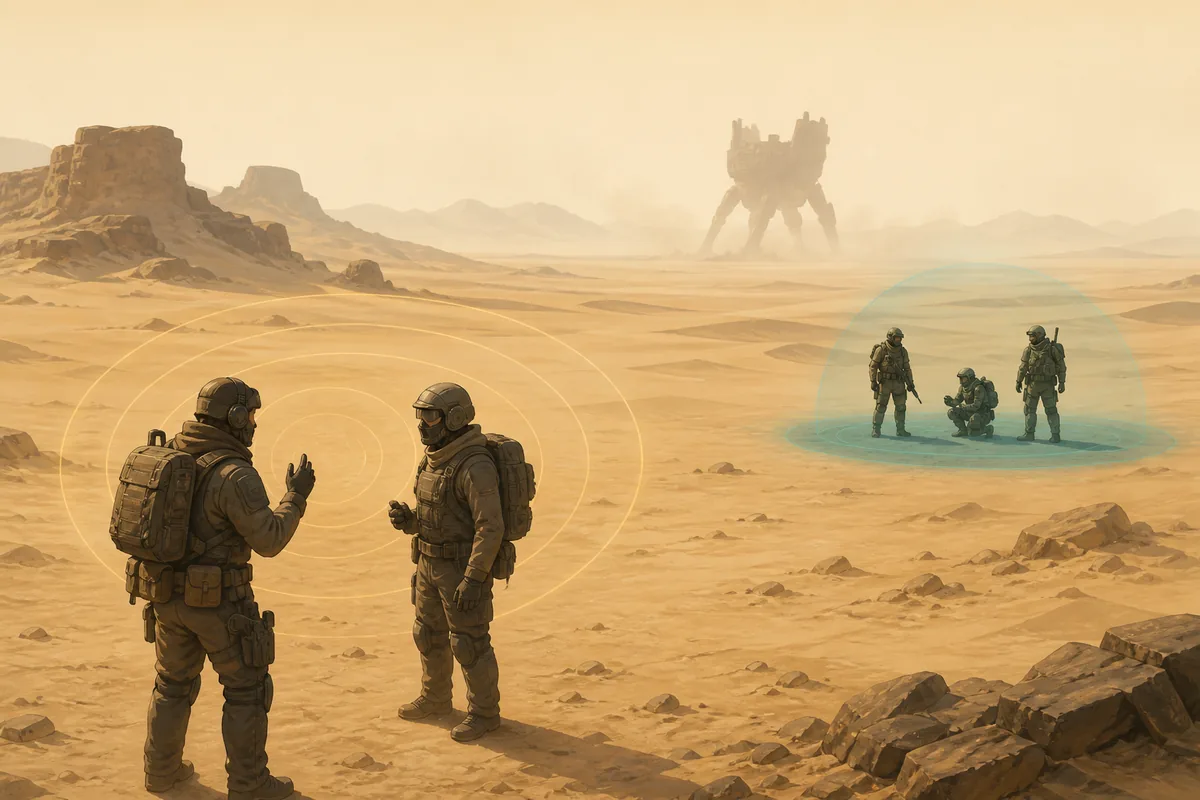
Proximity chat is local voice communication: it is meant for players who are close enough in the game world to hear one another. That makes it useful for a warning, a short negotiation, or a quick signal that another crew is nearby. It is also risky because speaking can reveal that a crew is present and can distract your own squad during a fight.
Team voice chat serves a different job. Use it for information that only your squad needs, such as a damaged Trampler, a hidden route, a missing key, a retreat call, or a player watching the rear. Do not assume that a voice channel labelled team is the same as proximity voice; read the current control label in the game settings.
SAND is an Early Access game, and control labels or audio behavior can change after an update. The reliable habit is to verify the binding and microphone meter in the current build before a serious expedition, then use the live game behavior rather than an old screenshot as the final authority.
Proximity voice
Short-range communication with nearby players. Use it when the other crew is close enough that a direct message could change the encounter.
Team voice
Private squad communication for route calls, repairs, combat roles, extraction timing, and information that should not be broadcast.
Text or platform chat
A fallback when a microphone fails. It is slower during combat, so agree on simple signals before leaving the Trampler.
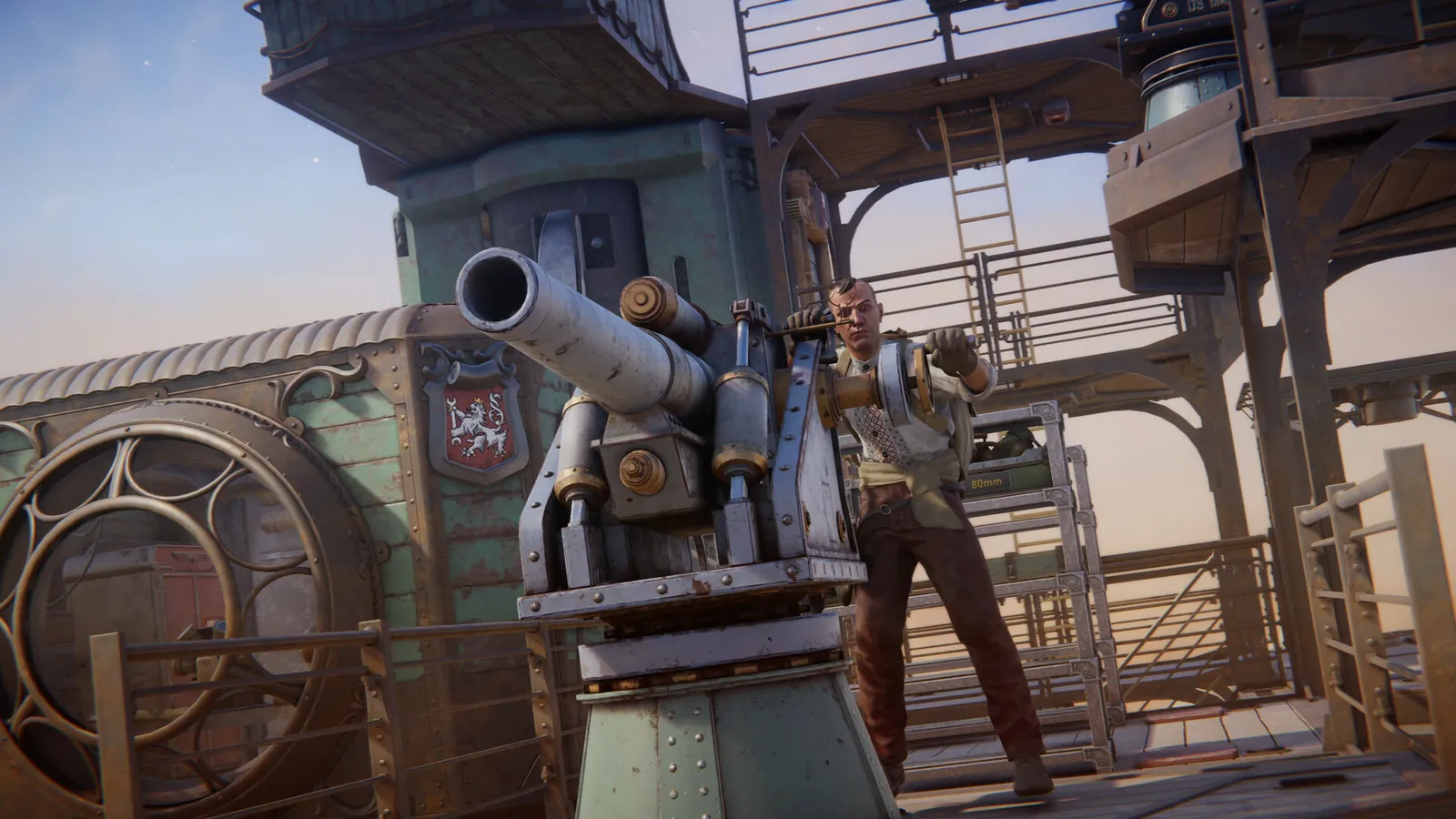
How to turn on proximity chat and test it
Do the first test in a calm menu or low-pressure session. A microphone that works in Discord or Steam is not automatically the input selected by the game, and a working input meter does not guarantee that the output volume is comfortable for nearby players.
Keep the process small: choose the device, confirm the input mode, check the key, speak once, and ask a teammate to confirm what they heard. If the check fails, fix one setting at a time instead of changing the key, device, volume, and platform permissions together.
1. Open the current audio and control settings
Look for voice input, microphone, voice volume, input mode, and the bindings for proximity or team voice. The exact menu wording may change between builds.
2. Select the real microphone
Choose the headset or USB microphone you will use in the raid. Avoid leaving a disconnected webcam, controller headset, or virtual audio device as the default by accident.
3. Confirm push-to-talk behavior
If the game offers push-to-talk, use it for a noisy room. If you use open microphone, lower background noise and keep the input threshold high enough to avoid transmitting keyboard or fan noise.
4. Test the proximity binding
Hold the current proximity key, speak a short sentence, release it, and ask a teammate or nearby player whether the transmission was clear. Do not infer success from your own headset alone.
5. Test before the high-value route
Make the test part of raid preparation. If the microphone fails after loading into the game, switch to a pre-agreed text or ping signal instead of stopping in an exposed landmark.
SAND Raiders of Sophie PC controls and keybinds
Third-party PC keyboard references commonly list C for voice chat and V for team voice chat. That is useful when you need a quick starting point, but it is not a promise that every current build, language layout, controller profile, or custom keymap uses those letters. Verify the binding shown in your own Controls menu and change it if it conflicts with movement or combat.
The best key is the one you can press without releasing movement, aiming, or a repair interaction. Keep proximity and team voice on separate, reachable inputs so a short message to a stranger does not accidentally broadcast a squad call.
| Control | Common reference | Use it for | What to verify |
|---|---|---|---|
| Proximity voice | Often C on PC keyboard guides | Talk to a nearby player or crew | Check the current in-game binding; the key is not official patch-proof data. |
| Team voice | Often V on PC keyboard guides | Talk privately with your squad | Confirm it is separate from proximity voice in your build. |
| Push-to-talk | Your selected voice key | Transmit only while held | Check whether the game uses hold, toggle, or an input threshold. |
| Microphone and voice volume | Audio settings | Balance your input and other players | A working input meter does not prove that output is audible or distortion-free. |
What range does proximity chat have?
The sources reviewed for this guide do not establish a stable official numeric radius for SAND proximity chat. Treat a fixed number copied from an old post as a version-sensitive claim, not a universal rule. Terrain, distance, sound mix, server behavior, and the current build can all affect what players experience.
Use a practical test instead. Stand at a safe distance with a teammate, transmit the same short phrase, move farther away, and ask when the voice becomes unclear or disappears. Repeat the test after an update or when moving between modes. The goal is to learn your current session behavior, not to memorize a number that may age quickly.
Treat distance as a risk boundary
If a nearby crew can hear you, assume your call, argument, or panic may reveal your position. Keep important route and extraction details on team voice.
Do not confuse visual range with voice range
Seeing a player across a ruin does not prove that proximity voice can reach them, and hearing a faint message does not guarantee a stable two-way conversation.
Re-test after changes
A patch, audio-device change, mode change, or platform session can alter your practical result. Record the build date in your own notes instead of turning an old test into a permanent rule.
Proximity chat not working? Try these fixes
First separate a binding problem from a microphone problem. If the key never triggers an input indicator, inspect the keybind. If the indicator moves but teammates hear nothing, inspect the selected device, operating-system permission, voice volume, and output channel. If only one player cannot hear, compare that player’s settings before calling it a server outage.
When the problem appears with invitations, matchmaking, or a whole group at the same time, check the server-status page and official update trail. Do not keep changing local audio settings when the wider session is also showing connection errors.
No input indicator
Rebind the proximity key, check for a keyboard-layout mismatch, and make sure another action has not claimed the same key.
The wrong microphone is active
Disconnect or disable unused headsets and virtual devices, then select the microphone you can see moving in the system input meter.
Teammates hear static
Lower input gain, move the microphone away from the keyboard, disable unnecessary audio enhancements, and test with one short sentence.
Only one player cannot hear
Compare that player’s voice volume, mute state, output device, platform permissions, and team/proximity channel before blaming the host.
Voice fails after an update
Recheck the binding and device after the patch. Save the exact build date and error behavior so a support report contains useful evidence.
Raid communication tips that protect your crew
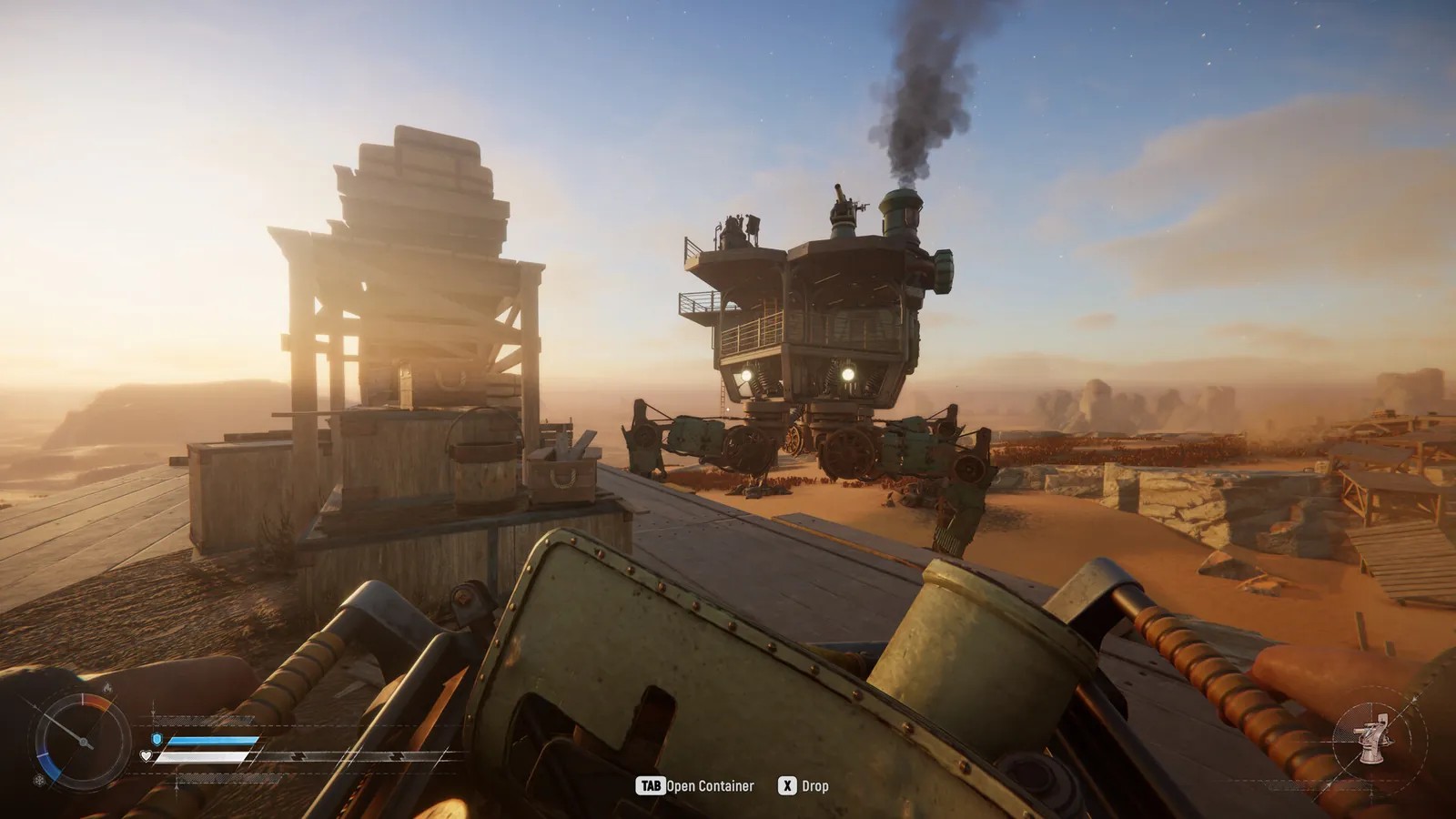
Proximity chat is a social mechanic as well as a control. A calm one-line message can prevent a needless fight, but a long conversation beside a valuable landmark can also make your crew an obvious target. Decide before the raid which information belongs on proximity voice and which information stays private.
Keep voice communication tied to a decision: identify, warn, negotiate, disengage, or extract. If the conversation does not change the next action, stop transmitting and return attention to the Trampler, the route, and the crew’s escape options.
- Use short calls Say who you are, what you want, and whether you are leaving. Short messages are easier to understand through sandstorms and combat noise.
- Keep secrets on team voice Do not announce your cargo, repair reserve, key, extraction route, or teammate position to a nearby stranger.
- Do not stop in the open If a conversation begins near a landmark, keep a retreat heading and avoid parking the Trampler where a second crew can trap it.
- Use a fallback signal Agree on simple pings, movement cues, or a text phrase for the moment voice fails. A fallback prevents silence from becoming confusion.
- Report harassment through the right channel Mute or block abusive players where the game or platform supports it, then use official support for a serious report. Do not publish personal information in a public guide.
SAND Raiders of Sophie proximity chat FAQ
How do I use proximity chat in SAND Raiders of Sophie?
Open the current Controls and Audio settings, select the correct microphone, confirm the proximity voice binding, then hold that key while speaking near another player. Test it before a high-value raid.
What is the default proximity chat key on PC?
Third-party keyboard references commonly list C for voice chat, but keybinds can change and custom layouts differ. Check the current in-game Controls menu instead of treating C as an official permanent setting.
What is the difference between proximity and team voice chat?
Proximity voice is intended for nearby players, while team voice is for your squad. Keep route, cargo, key, repair and extraction information on the private team channel.
What range does SAND proximity chat have?
This guide does not claim a stable official numeric radius. Test the current build with a teammate at safe distances and treat terrain, mode, sound mix and updates as variables.
Why can my teammate hear me but I cannot hear them?
Compare both players’ input and output devices, voice volume, mute state, platform permissions and channel selection. A one-sided problem is usually a local setting or device mismatch before it is a server-wide outage.
Can I use proximity chat if my microphone is broken?
No voice channel can transmit a missing input. Use a text or ping fallback, repair the device or permission, and agree on simple signals before entering an exposed route.
Sources and verification
Checked August 16, 2026. Official support and Steam sources are used for game context; third-party keyboard references are clearly treated as changeable hints rather than permanent official bindings.